
Setting Up Your AI Provider in Moondoggle

Keith
During the beta phase (through November 2026), Moondoggle's AI will run on your own API key, which let's you pick the AI provider and directly control the cost. We take privacy seriously, so your key never leaves your machine. This guide walks you through getting a key and connecting it, start to finish, in about five minutes.
What's an API key?
An API key is a password that lets Moondoggle talk to your AI provider on your behalf. You create one on the provider's website (it's free to create and you only pay per use), then paste it into Moondoggle's settings. That's it.
Your key is stored in your computer's Keychain, which is the same secure system that holds your saved passwords. It never appears in your project files, never gets sent to Moondoggle's servers, and never goes anywhere except directly to the provider when you ask a question.
Which provider should I choose?
All four work well with Moondoggle. Here's a quick comparison to help you decide:
| Provider | Best for | Cost | Key trait |
|---|---|---|---|
| Anthropic (recommended) | Authors who want the best writing analysis | Moderate | Has publically committed to never train on data sent via API |
| OpenAI | Authors with existing ChatGPT accounts | Moderate | Familiar if you use ChatGPT, also committed to no training on API data |
| Google Gemini | Authors who want speed + Google ecosystem | Lower | Fast responses, does train on API calls if you use the free tier of their AI studio |
| DeepSeek | Budget-conscious authors | Very low | Cheapest per query since it's an open-weight model, but trains on API data with limited transparency |
We recommend Anthropic because of their ethical data-use policy and the high quality of Claude's responses. But all four providers work great, and you can switch anytime.
Getting your API key
Once you've picked your provider, follow these steps. You only need to do this once.
Anthropic (Claude)
- Go to platform.anthropic.com
- Create an account (email + password, or Google sign-in)
- Navigate to the API Keys section in the left sidebar
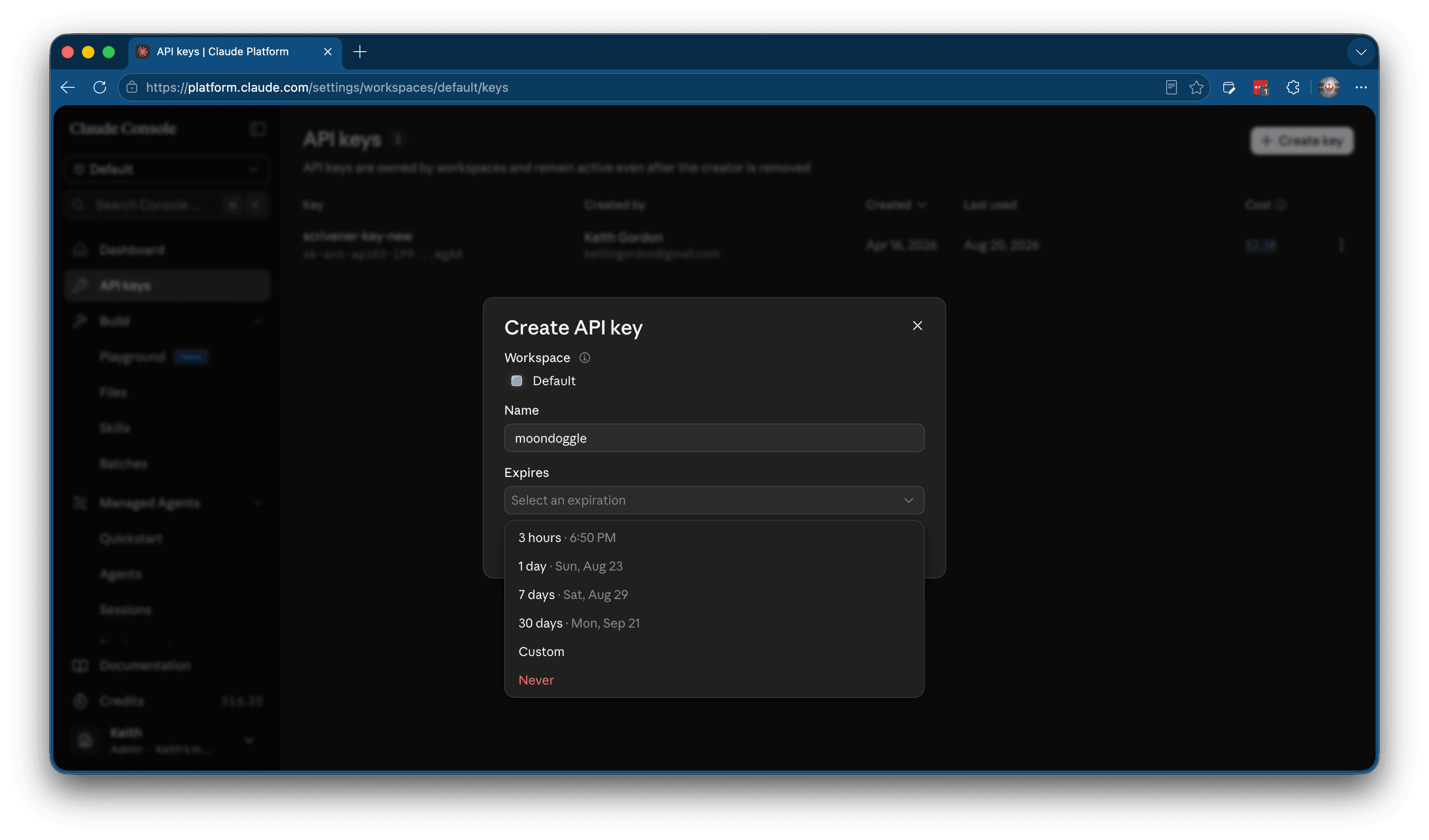
- Click Create Key
- If you get a pop-up asking about "Identify Federation," you can click Continue with API key
- Name your API key something like "Moondoggle"
- Set experation to "Never" (or a shorter duration if you plan to rotate your keys often)
- Copy the key (it starts with
sk-ant-...). Important: you'll only see it once, so don't close the page yet - Add a payment method under Settings → Billing. You'll be charged per use, typically $2–5/month for normal writing sessions.
- New accounts usually receive a small free credit to get started
OpenAI (GPT)
- Go to platform.openai.com
- Create an account. This a is separate from a ChatGPT subscription (the API is billed differently).
- Navigate to API Keys in the left sidebar
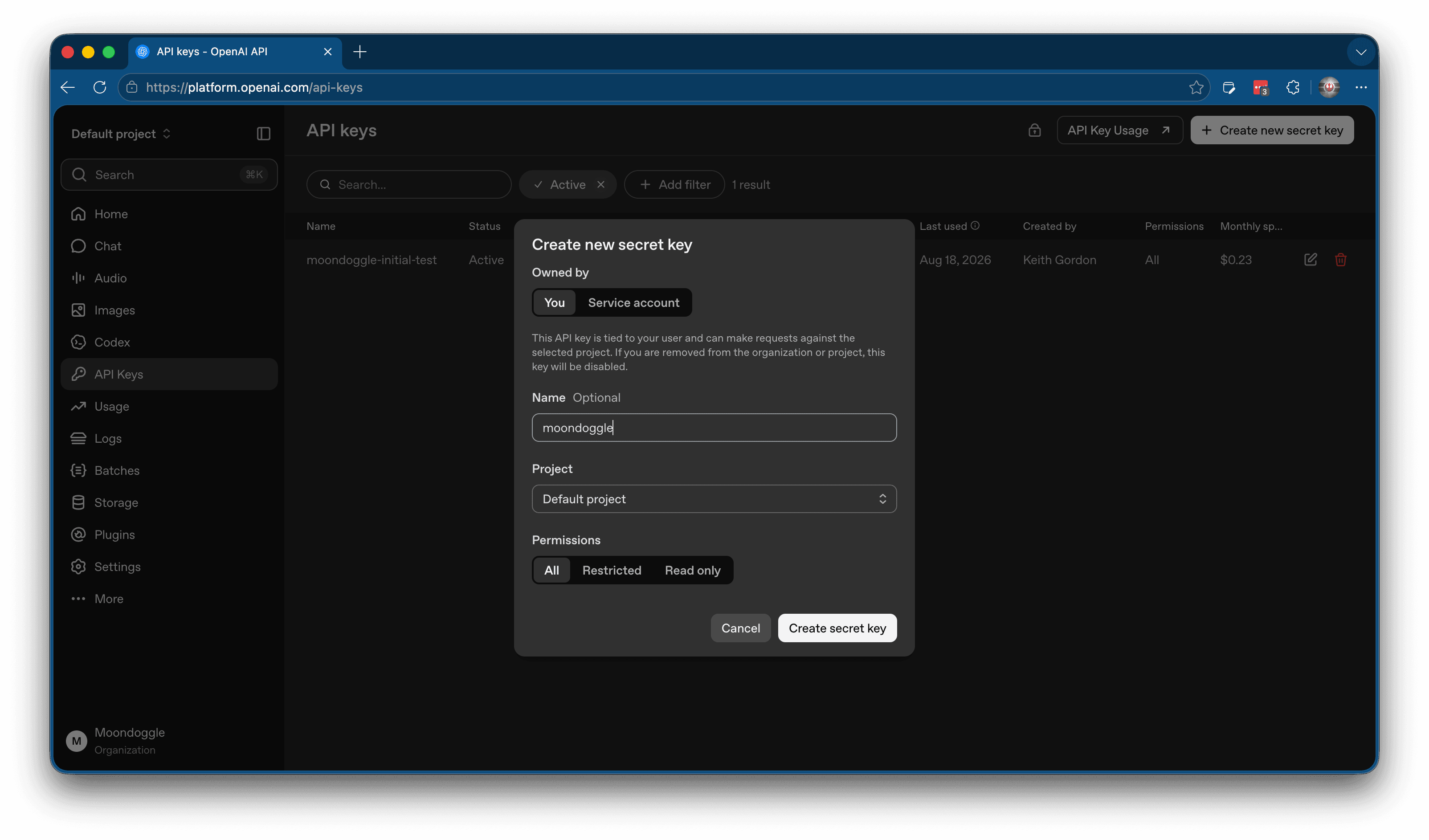
- Click Create new secret key and name it something like "Moondoggle"
- Make sure permissions are set to All
- Copy the key (it starts with
sk-...). Important: you'll only see it once, so don't close the page yet - Add a payment method under Settings → Billing → Add payment method
A ChatGPT Plus subscription does NOT cover API usage. They're billed separately. You need to add a payment method to the API platform even if you already pay for ChatGPT.
Google Gemini
- Go to aistudio.google.com
- Sign in with your Google account
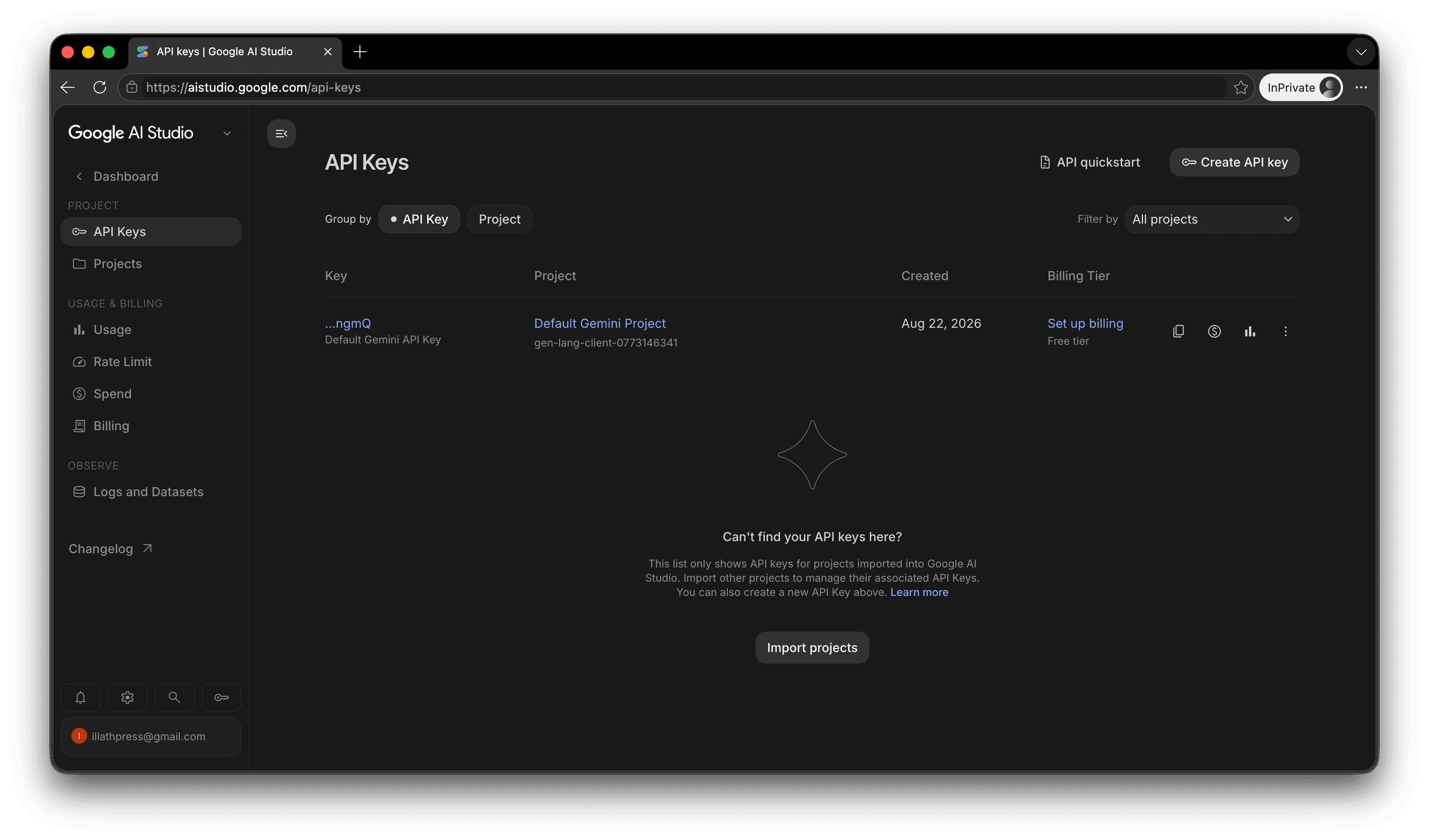
- Click Dashboard in the left-hand menu, then API Keys
- Click Create API Key and select or create a Google Cloud project (the free tier works fine)
- Copy the key (it starts with
AQ...)
Google offers a generous free tier, so you may not even need to add billing for light usage.
Google's free tier allows them to use your API inputs to improve their models. If you'd rather keep your manuscript out of training data, add billing and switch to the paid tier. Their paid API terms exclude your data from model training.
DeepSeek
- Go to platform.deepseek.com
- Create an account
- Navigate to API Keys
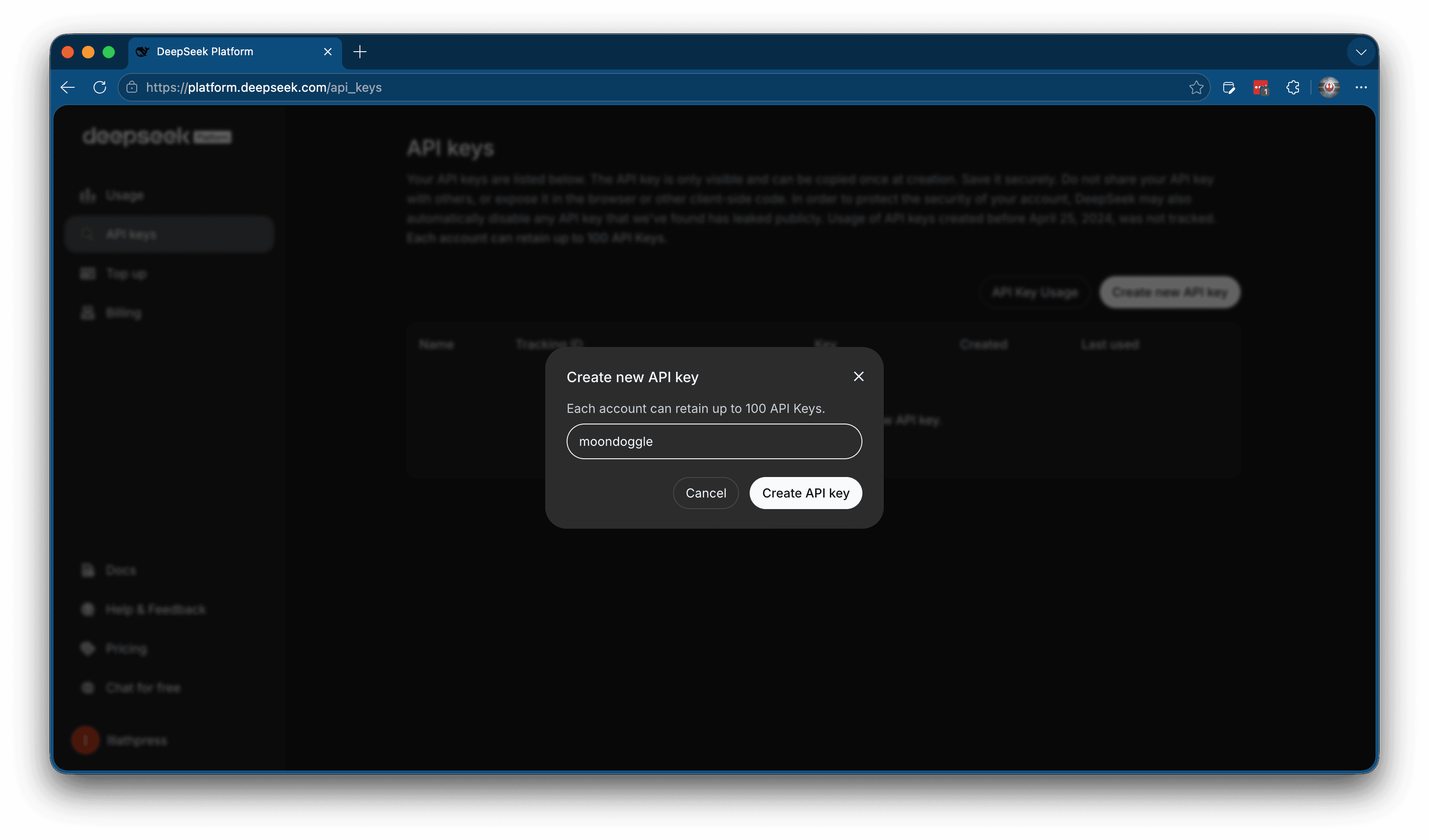
- Click Create new API key and name it something like "Moondoggle"
- Copy the key
- Add balance (it's a top-up model, so you can prepay a small amount like $5)
DeepSeek is an open-weight model which makes it dramatically cheaper than other providers, and $5 could last months of regular use. However, it is owned by a Chinese company and they provide little transparency on how they use customer data. Use at your own discretion.
Entering your key in Moondoggle
Now the easy part.
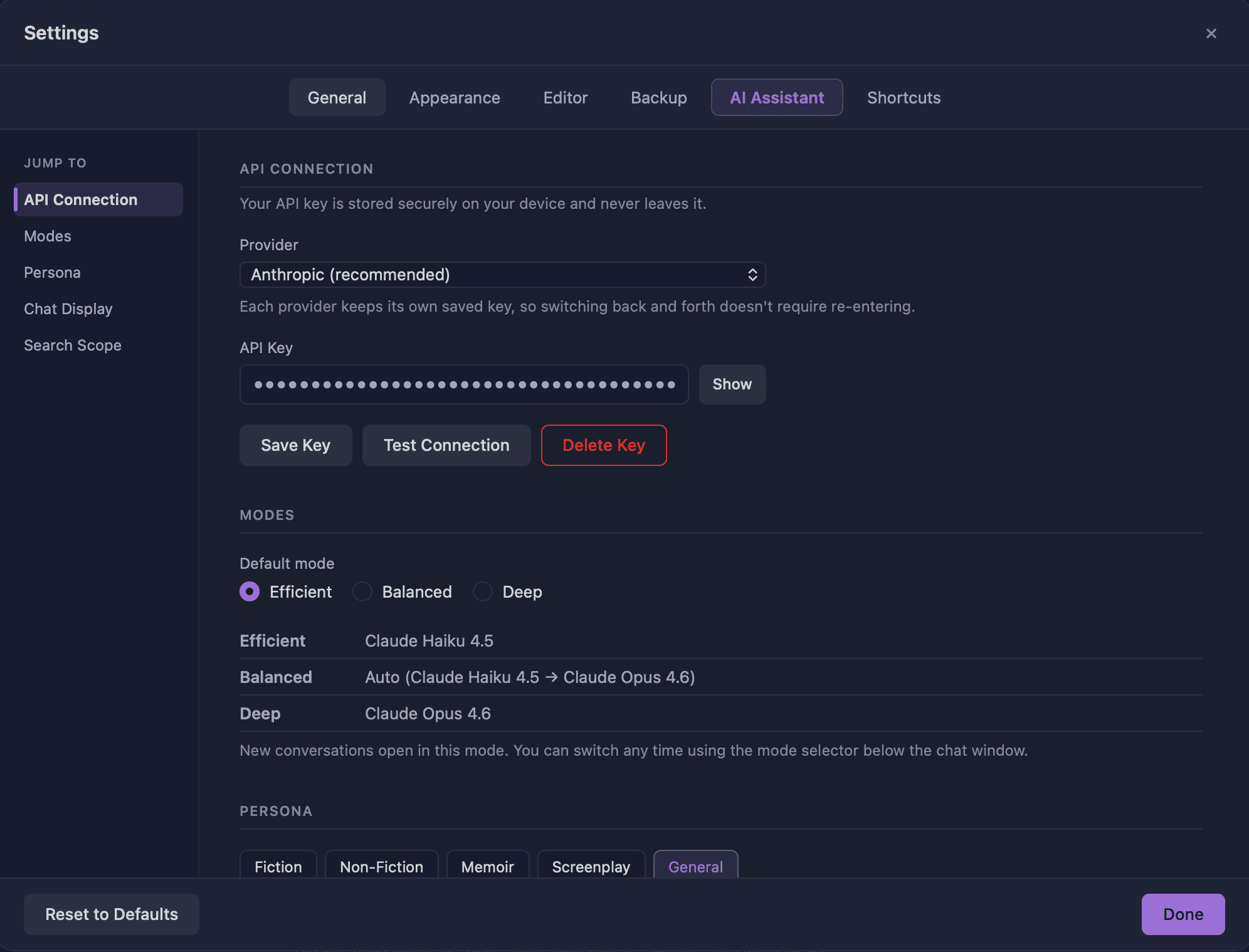
- Open Moondoggle → Settings → AI Assistant tab
- Select your provider from the dropdown
- Paste your key into the API Key field
- Click Test Connection
You should see "✓ Connection successful — key saved." Close settings and you're ready to chat.
You will likely be prompted by your computer to grant Moondoggle access to your keychain. This is safe and expected behavior, and it shows that Moondoggle can only access the keys you allow it to. Note: On Macs you may have to hit "Always Allow" 2-3 times, but then it won't prompt you again.
What if it doesn't work?
- "Invalid key" — Double-check you copied the full key. Try generating a new one.
- "Connection failed" — Check your internet connection. If you're behind a corporate firewall or VPN, that can sometimes block API calls.
- "Rate limit" — Your provider account may need a payment method added or a usage tier upgrade. Check your provider's billing dashboard.
How much will this cost?
Here's what typical usage looks like:
| Usage pattern | Anthropic / OpenAI / Google | DeepSeek |
|---|---|---|
| Light (5–10 questions/day, Efficient mode) | $2–5/month | $0.20–0.50/month |
| Moderate (20 questions/day, mixed modes) | $5–15/month | $1–3/month |
| Heavy (50+ questions/day, lots of Deep mode) | $15–30/month | $3–8/month |
Moondoggle shows you the cost of each response in real time, right below the message. No surprises. You can switch providers or adjust your AI mode at any time to manage costs.
Start with Efficient mode while you're getting comfortable. It handles most questions well and costs a fraction of Deep mode. You can always switch to Deep for complex analysis, like asking the assistant to find plot holes across your entire manuscript.
You're set up
Five minutes, one key, and your AI assistant is ready to go. It knows your manuscript, respects your voice, and answers when you ask. That's it.
If you hit a snag, join our Discord and we'll help you get sorted.
In case you haven't yet, Join the open beta to download Moondoggle and try it yourself.
Prefer to watch? The full video walkthrough is on YouTube.